


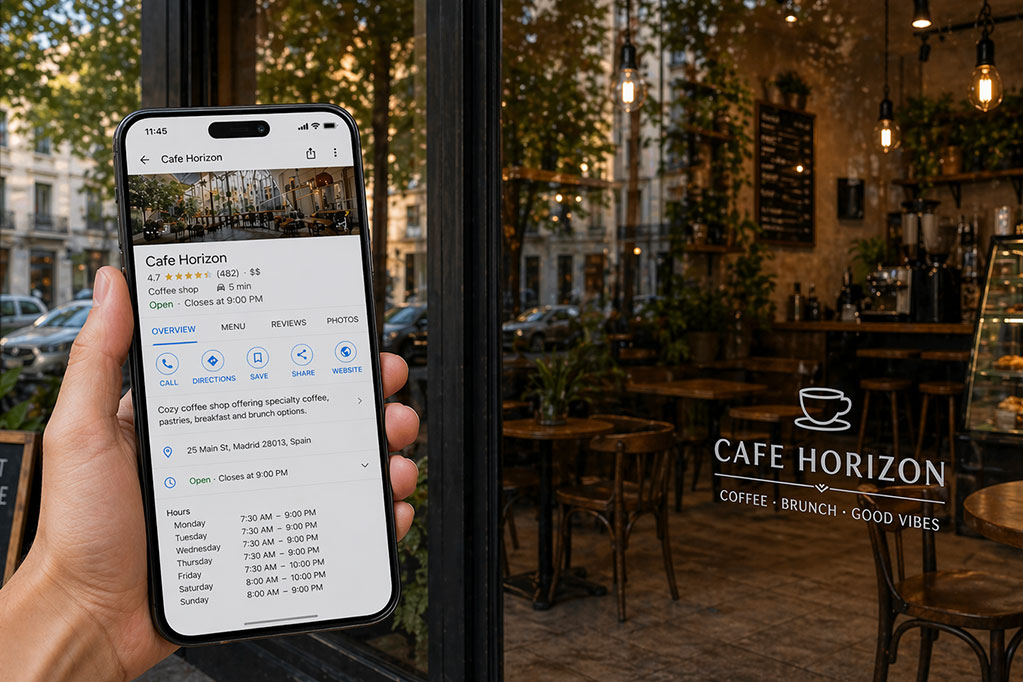
Changing your business hours on Google is essential, but not every method is equally efficient.
If you only manage one location, you can do it manually from your computer.
But if you want a faster option or manage several profiles, the most practical way is to do it from your phone with Opinas, a free app available on Android and iOS.
Comparison: Desktop vs. App
| Aspect | Google Maps | Opinas App |
| Device | Mostly desktop | Mobile (fast and direct) |
| Ease of use | Moderate (several steps) | High (simplified workflow) |
| Time per update | 2–5 minutes | Less than 1 minute |
| Holiday hours | Manual | Faster to manage |
| Multiple locations | ❌ Very slow (one by one) | ✅ Bulk updates (all at once) |
Option 1: Change Your Hours Manually on Desktop
If you only have one business and you’re at the office, you can update your hours directly through Google.
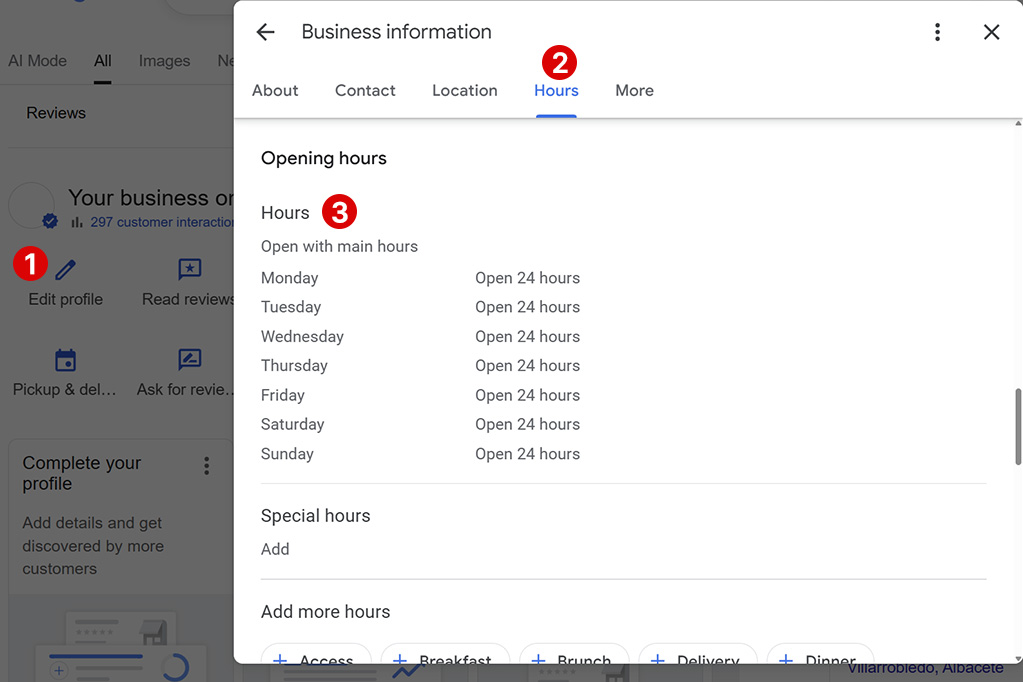
First, sign in to your account and search for your business or type “my business.” From there, you’ll access your management panel.
• Click “Edit profile”
• Go to “Hours”
• Adjust your days and opening hours
• Save your changes
This method works, but it requires you to go in manually every time and it’s not designed for quick day-to-day updates.
Option 2: Change Your Hours From Your Phone (Faster)
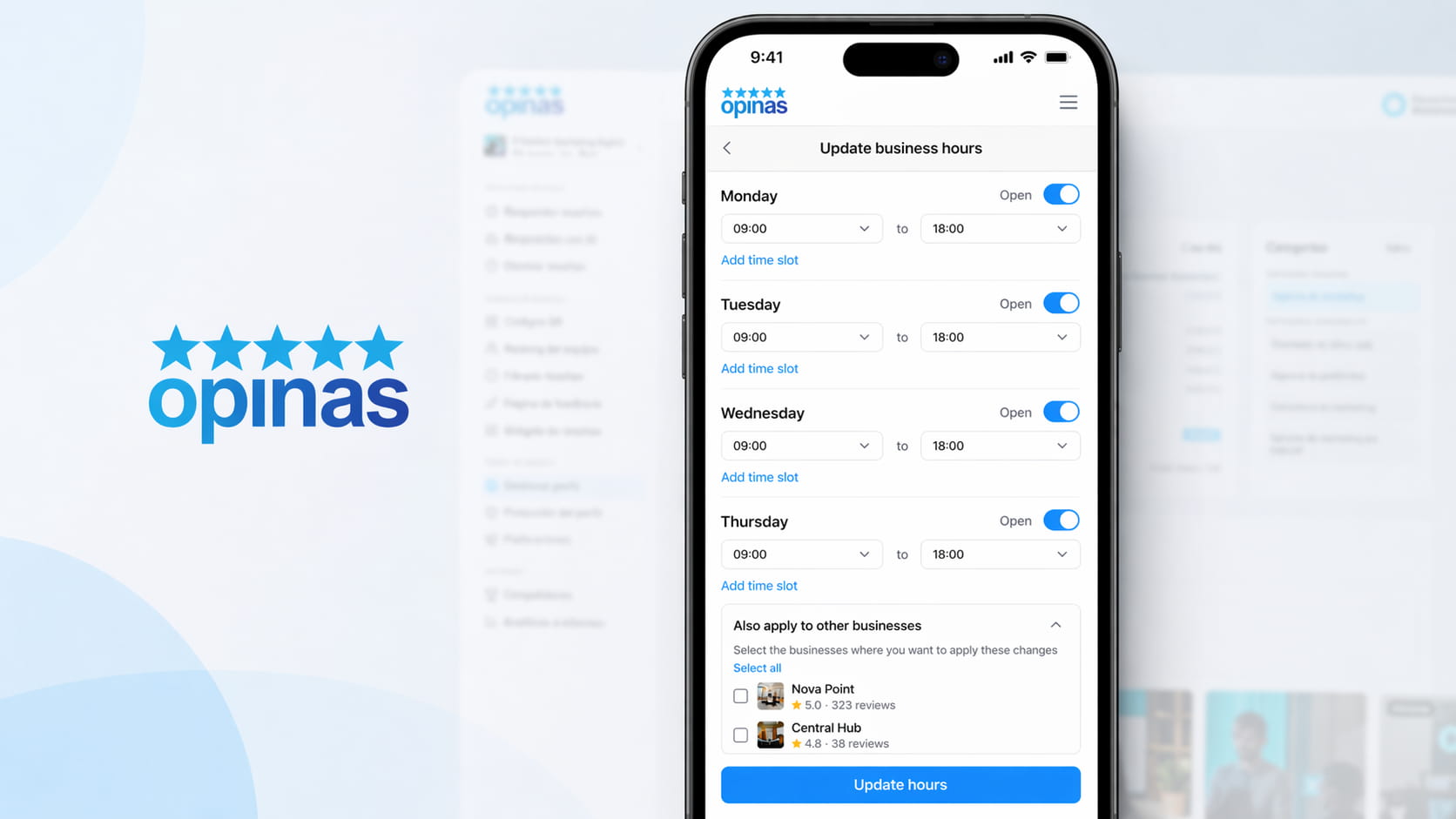
If you need to make quick changes or don’t want to rely on a computer, this is where the Opinas app for Android and iOS comes in handy.
Instead of navigating through Google Maps menus, you get direct access to your business hours from your phone.
• Edit in seconds
• Avoid unnecessary steps
• Update anytime, anywhere (store, street, home)
If You Have Multiple Locations, You Need Bulk Updates
This is where the manual method stops making sense.
If you manage multiple locations, changing hours through Google means repeating the same process over and over again. That takes time and increases the risk of mistakes.
With Opinas, you can:
• Manage all your business profiles from one dashboard
• Apply the same hours to multiple locations
• Update holiday hours across every location at the same time
What used to take you hours can now be done in minutes using the free Opinas app, available on Android and iOS.
What You Should Do Based on Your Situation
- You have 1 business and you’re on desktop → use the native Google method
- You have 1 business but want speed → use Opinas from your phone
- You have multiple locations → use Opinas, no question
Why Keeping Your Business Hours Updated on Google Matters
Keeping your business hours updated on Google is not a minor detail. It directly affects your sales, your online reputation, and your customer experience.
Today, users fully trust the information they see on Google Maps and in Google Search. If someone looks up your business and sees that you’re open, they assume that information is correct. If they arrive and find your doors closed, you don’t just lose that sale, you also increase the chances of getting a negative review or losing that customer for good.
Incorrect hours also send negative signals to Google. When several users notice that the information doesn’t match reality, they can report it, which may affect your visibility in local search results. That can cause you to lose positions on Google Maps to competitors with better-maintained profiles.
Another key point is control over your profile. If you don’t keep your information updated, Google may accept suggestions from other users and change your details without you having full control, creating inconsistencies for your business.